User Interface
Almost every application needs an interface: a HUD, menus, buttons, dialogs, labels in the scene, or a panel in XR. PlayCanvas lets you build them inside the canvas, from entities, as part of the scene, or outside it with HTML and CSS, and many applications combine the two.
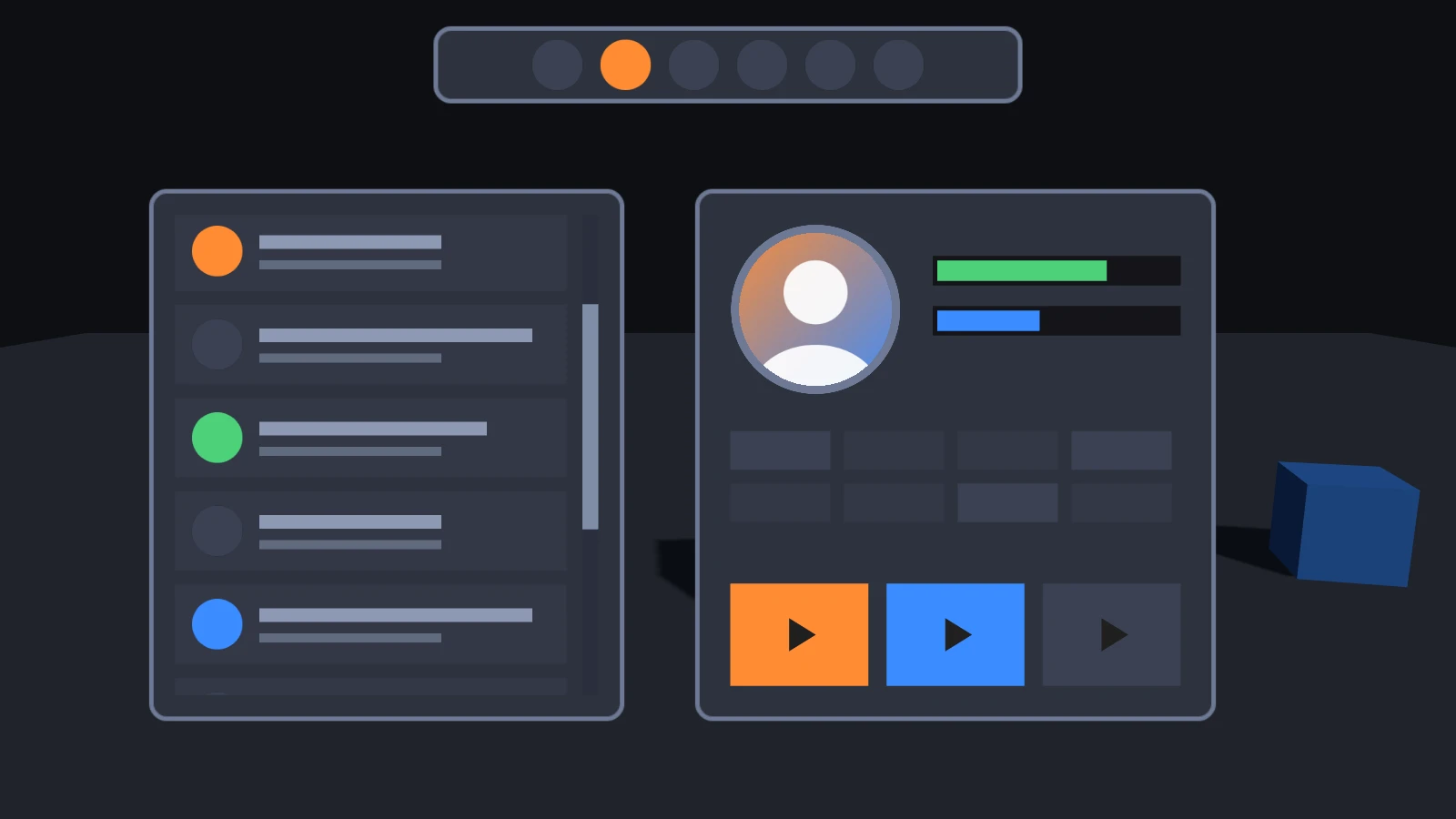
In-canvas UI is built from components. A screen is the root of an interface, and elements below it are its images, text and groups. Components such as buttons, layout groups and scroll views add behavior on top. They are available whichever way you build: in the Editor, directly against the engine, in PlayCanvas React and in Web Components. Each page in this section explains a concept once and then shows how to apply it on each of those surfaces.
Two Ways to Build UI
| In-canvas UI | HTML and CSS | |
|---|---|---|
| World space and XR | Screens can be placed in the scene, and work in XR | Only over the canvas |
| Text input | None built in | Text fields, autocomplete, the on-screen keyboard |
| Accessibility | Not visible to screen readers or keyboard navigation | Accessible with the right elements |
| Styling and layout | Anchors, layout groups, 9-sliced sprites | CSS, with the browser's layout and animation |
| Fonts and emoji | MSDF fonts made from your font files, emoji through a canvas font | Every web font and emoji |
| Editor | Built and previewed in the Editor | Written as HTML and CSS assets or files |
| Canvas capture | Part of screenshots and video captures of the canvas | Not in captures of the canvas |
| Performance | Drawn with the scene, and batched | Laid out and painted by the browser beside the canvas |
In-canvas UI suits HUDs, interfaces in the scene or in XR, and anything that must be part of what the canvas shows. HTML suits menus, settings, forms and long text. They mix well: an HTML settings screen can pause an application whose HUD is in the canvas. See HTML and CSS.
Building Blocks
| Component | Role | Editor | React | Web Components | API |
|---|---|---|---|---|---|
| Screen | The root of an interface, over the view or in the scene | Screen | <Screen> | <pc-screen> | ScreenComponent |
| Element | An image, a text or a group | Element | <Element> | <pc-element> | ElementComponent |
| Button | Hover and press states, and click events | Button | Engine component | <pc-button> | ButtonComponent |
| Layout Group | Arranges children in rows, columns and grids | Layout Group | Engine component | <pc-layout-group> | LayoutGroupComponent |
| Layout Child | Overrides how a layout group sizes a child | Layout Child | Engine component | <pc-layout-child> | LayoutChildComponent |
| Scroll View | Scrolls content inside a masked viewport | Scroll View | Engine component | <pc-scroll-view> | ScrollViewComponent |
| Scrollbar | A draggable handle on a track, for scroll views and sliders | Scrollbar | Engine component | <pc-scrollbar> | ScrollbarComponent |
PlayCanvas React has components for screens and elements. The others are added as engine components, with a small helper that each page shows.
In This Section
- Getting Started - Setting up UI on each surface, and a first interface.
- Layout
- Screens - Screen space and world space, scaling to any canvas, pixel ratio and priority.
- Elements - Anchors, pivots, margins, sizes and group elements.
- Layout Groups - Rows, columns and grids that arrange their children.
- Safe Areas - Keeping an interface clear of notches and rounded corners.
- Images
- Image Elements - Colors, textures, sprites, 9-slicing, 3D in an image and custom materials.
- Masks - Clipping children to a rectangle or a shape.
- Text
- Text Elements - Size, wrapping, fitting, justification, markup, outlines and shadows.
- Fonts - Creating and loading font assets, and choosing their characters.
- Localization - Translations, plurals, locales and fonts for each language.
- Interaction
- Input - Mouse, touch and XR events, bubbling, and keeping UI input from the game.
- Buttons - Hover and press states, tints, sprites and events.
- Scroll Views - Scrolling content by dragging, the wheel and scrollbars.
- Common Widgets - Progress bars, sliders, toggles, dialogs, lists, drag and drop and more.
- World Space and XR
- World-Space UI - Interfaces in the scene, and labels over characters.
- UI in XR - Panels, pointing, hands and menus in immersive sessions.
- HTML and CSS - Interfaces built with the DOM over the canvas.
- Draw Order and Performance - How UI is drawn, and keeping it fast.
- Troubleshooting - Common problems and their causes.
See Also
- User Interface - Buttons, Leaderboard and Progress Bar - Tutorials that build interfaces in the Editor
- User Interface - Text Input - Tutorial that builds a text field
- Touchscreen Joypad Controls - Tutorial that builds on-screen joysticks
- 2D - Sprites, texture atlases and 9-slicing
- PCUI - The HTML component library for building tools and editors